19 of 19
fields right.
Your own fields
Start blank and name the fields you want, in plain words, with a typical value for each. Save it as a field list and use it for as many files as you like.
Your workspace
The same workspace you get when you sign up, opened on the screen closest to this kind of document. Pick a tab to see the rest.
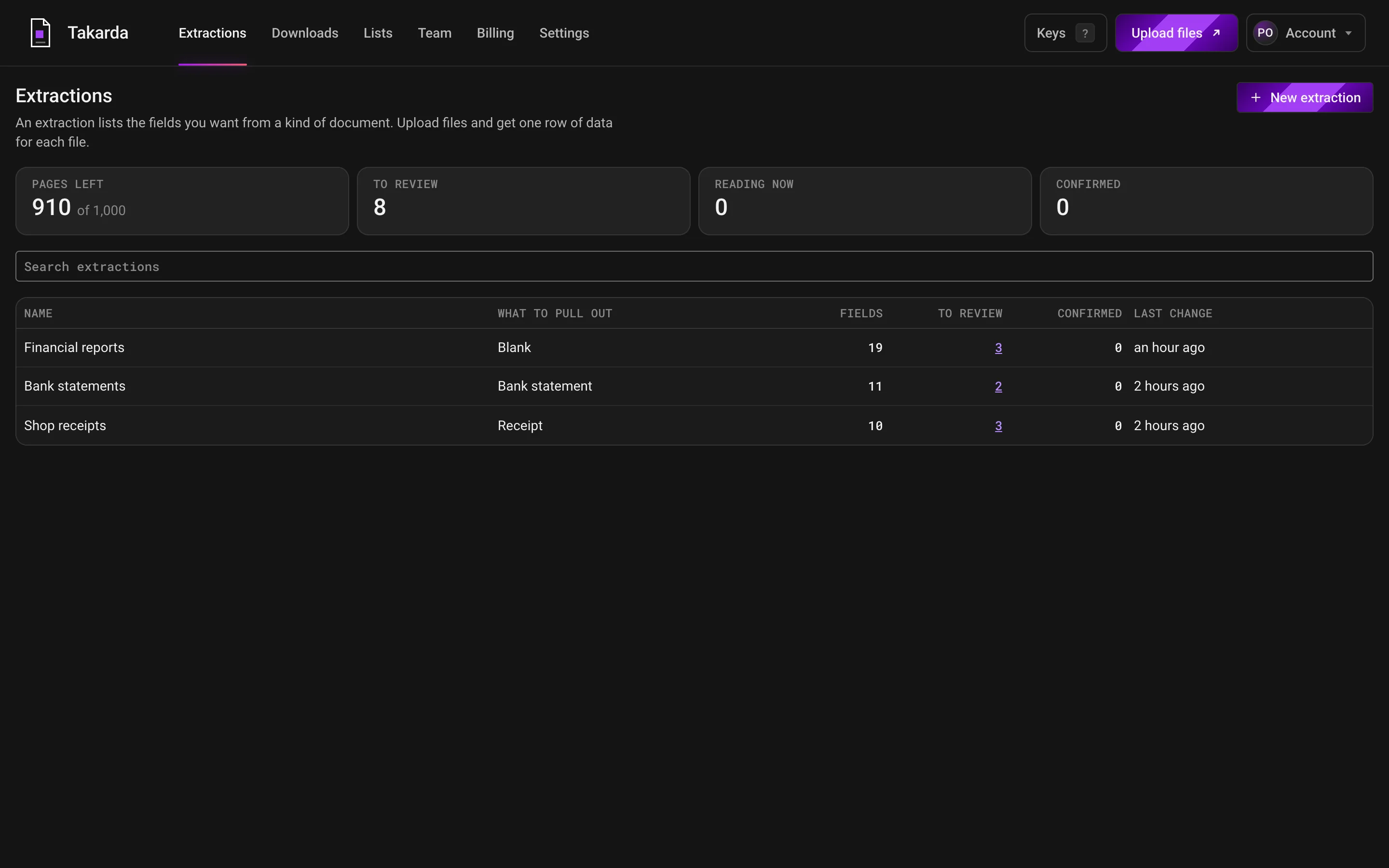
Each list you have made shows its files, how many are waiting for a look and how many are confirmed.
The count at the top shows the pages you have left this month.
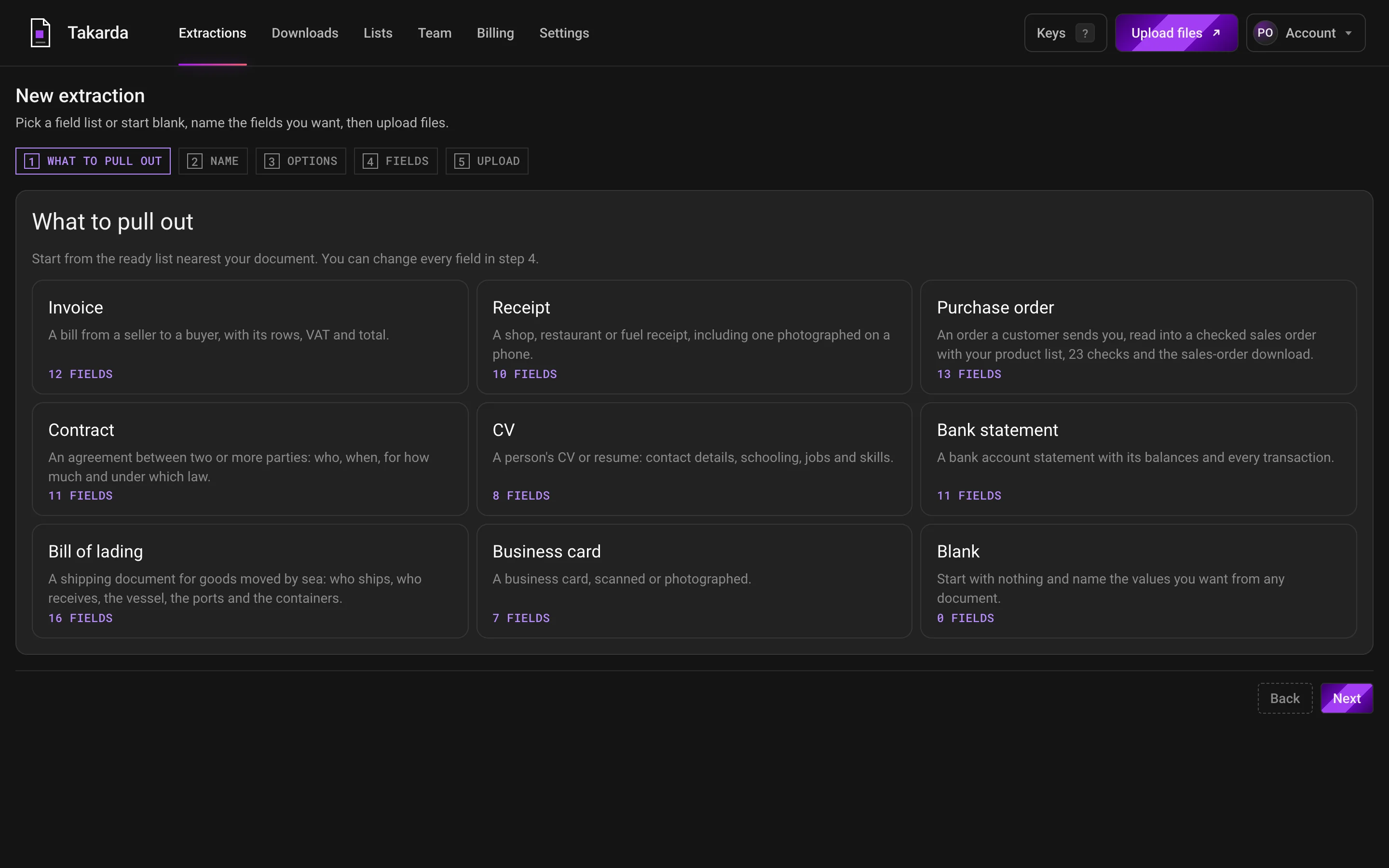
Pick the ready list nearest your document, such as an invoice, a receipt or a bank statement, or start with a blank one.
Then name each value you want, say what kind it is, and change any field you like.
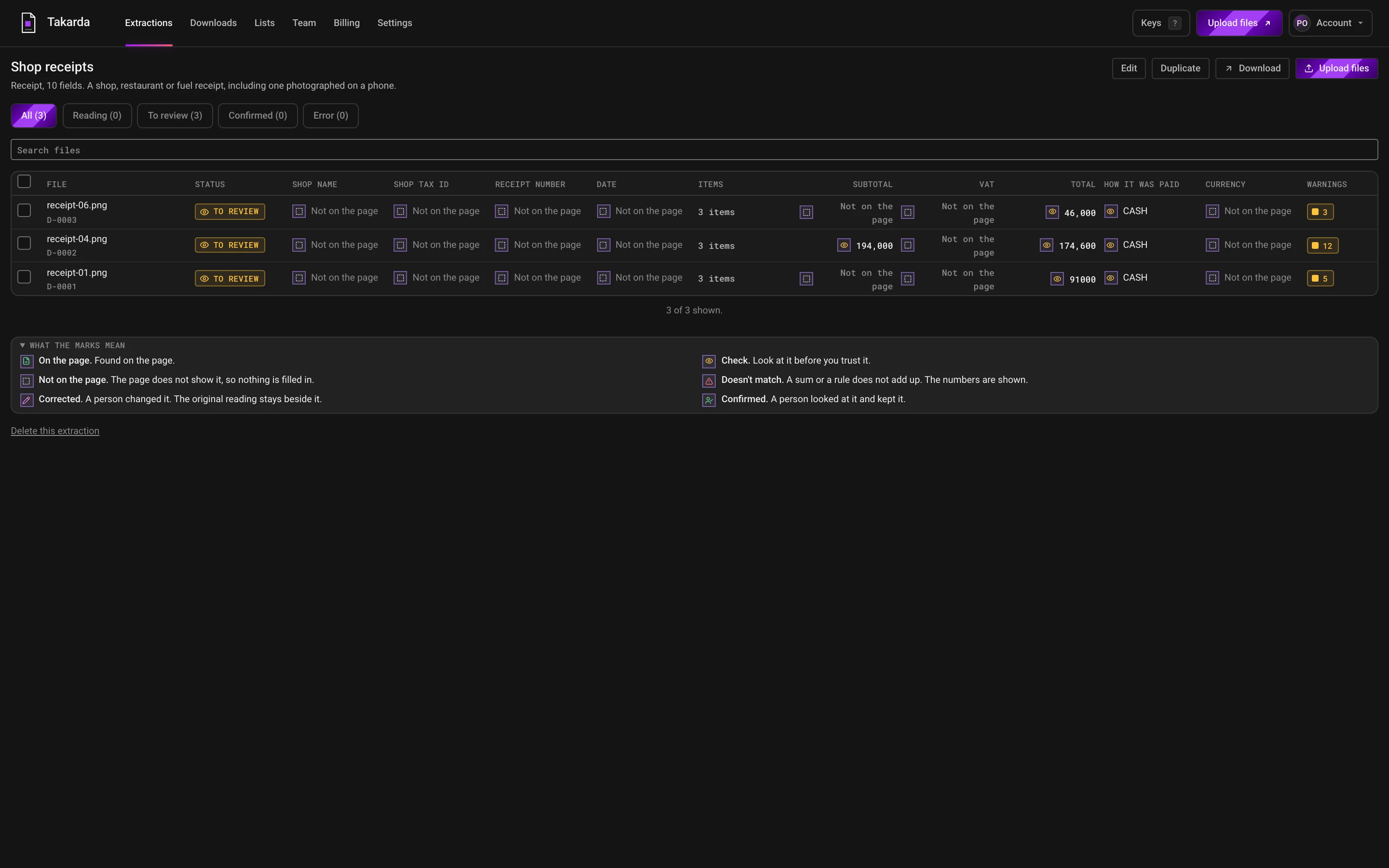
Each file is one row and each value you asked for is one column.
A mark on every value says whether it was found on the page, so nothing is filled in to look complete.
Receipt photos on these screens are from the public CORD v2 set by NAVER Clova, licence CC BY 4.0.
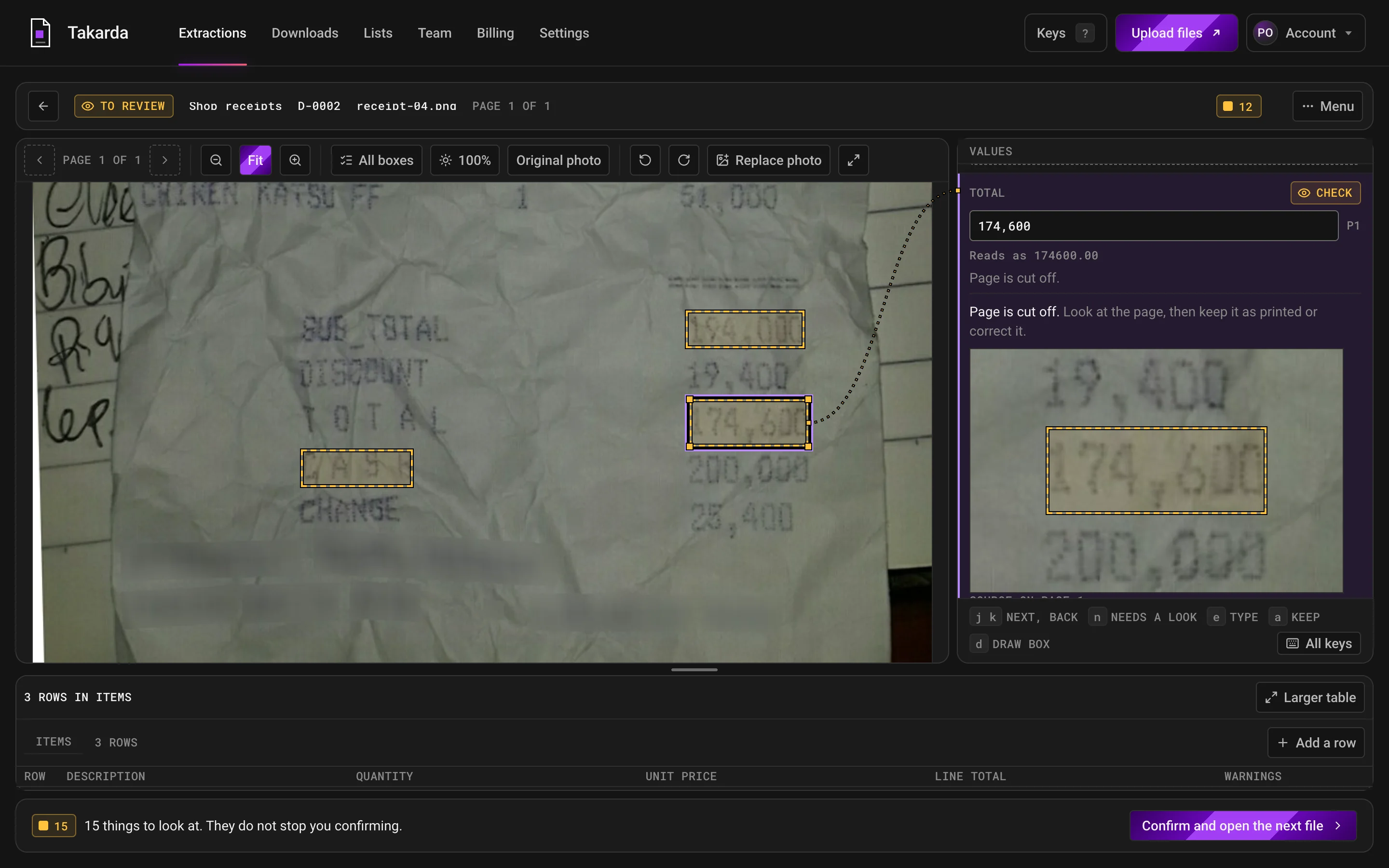
Click a value and its box lights up on the page, with a close-up of what was read beside it.
Warnings stay in view, and a person confirms each file before it can be downloaded.
Receipt photos on these screens are from the public CORD v2 set by NAVER Clova, licence CC BY 4.0.
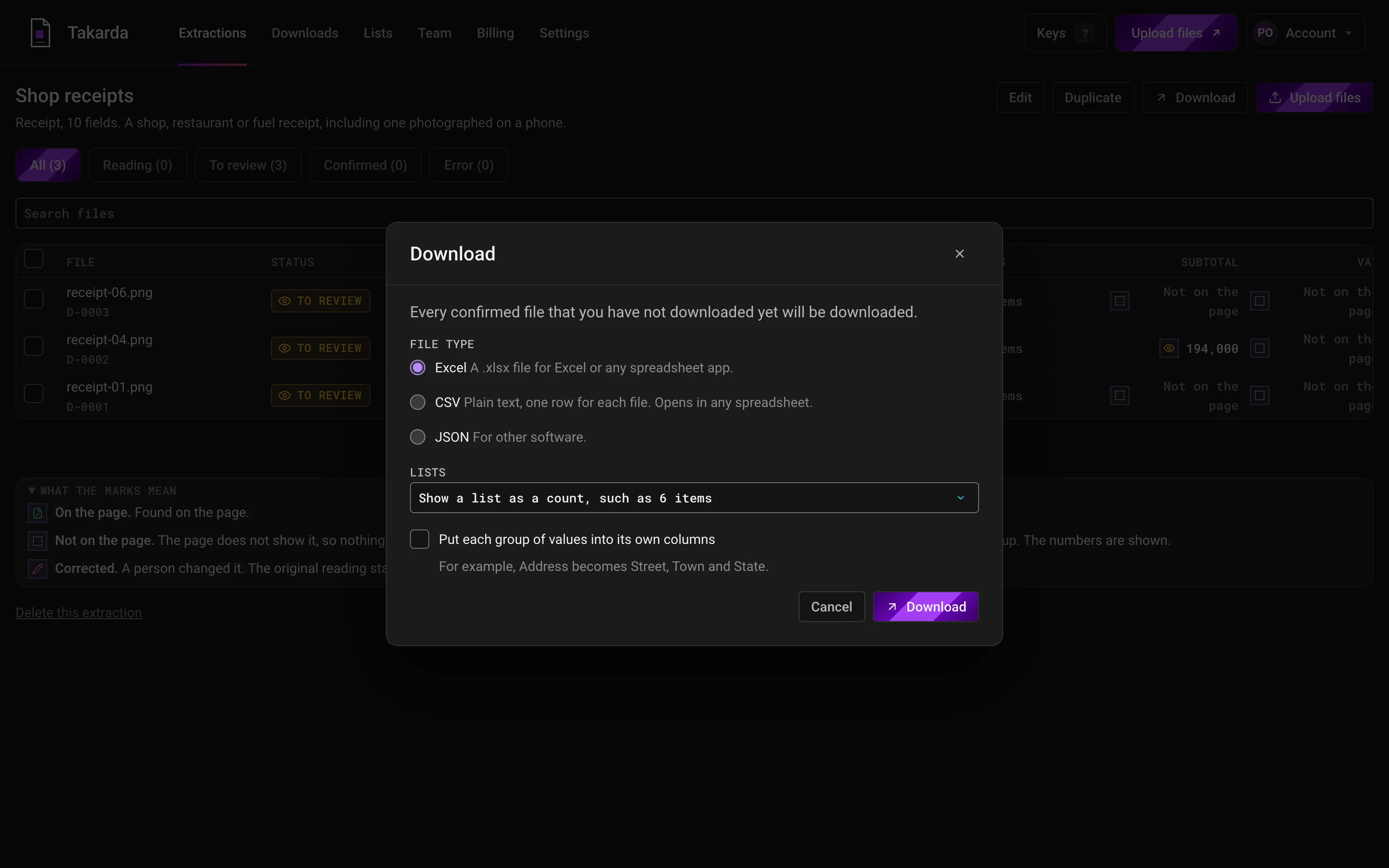
Download your checked files as Excel, CSV or JSON, and choose how lists are shown.
If a file still has warnings, Takarda lists every one first and asks you to confirm.
Receipt photos on these screens are from the public CORD v2 set by NAVER Clova, licence CC BY 4.0.
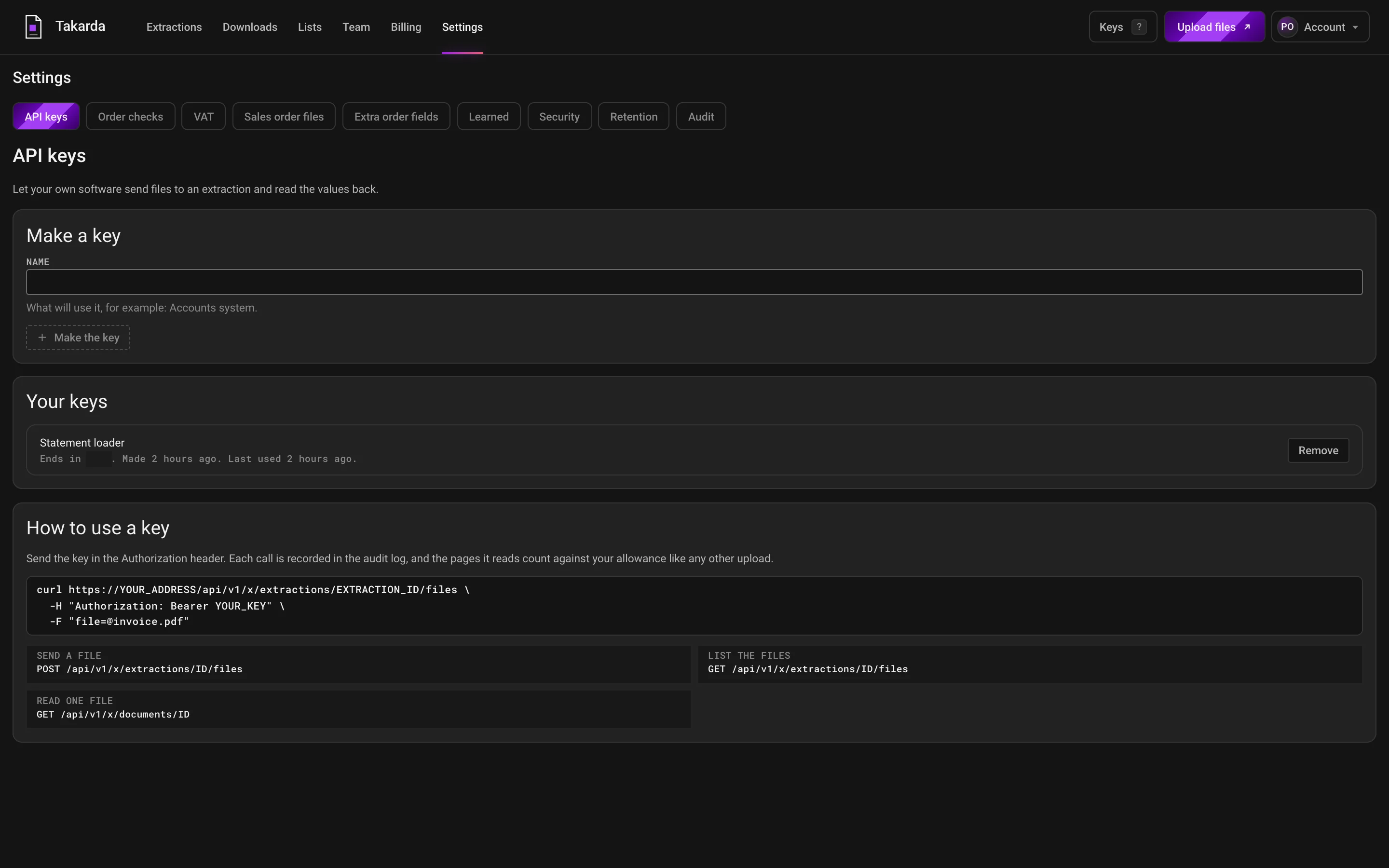
Make a key, and your own software can send files and read the values back.
Each file it sends counts against your pages like any other upload.
Read your own files after you sign up: the free plan reads 30 pages a month.
Fields
Every field has a name, a description of what to look for and a typical value. Choose the kind of value for each one.
Your own fields, tested
There was no ready field list for a company report, so we wrote one of 19 fields and read a public quarterly report of a listed Nigerian bank: 37 pages, amounts in millions of naira. We do not name the bank or show its pages. These are the figures of the version tested.
19 of 19
fields right.
19 of 19
fields with their box on the page.
1 minute 42 seconds
from upload to ready, for 37 pages.
₦175 (about $0.11)
to read the whole report.
The 19 fields
Each field has a name and a short description of what to look for, like any field list. Every one came back right, with its box on the page.
| Field | Result | Box and check |
|---|---|---|
| 01Company | Right | On the page. |
| 02Report title | Right | On the page. |
| 03Period end | Right | On the page. |
| 04Amounts are in | Right | On the page. |
| 05Tax ID | Right | On the page. |
| 06Interest income | Right | On the page. |
| 07Interest expense | Right | On the page. |
| 08Net interest income | Right | On the page. |
| 09Net fee and commission income | Right | On the page. |
| 10Operating income | Right | On the page. |
| 11Profit before tax | Right | On the page. |
| 12Profit after tax | Right | On the page. |
| 13Earnings per share | Right | On the page. |
| 14Cash and bank balances | Right | On the page. |
| 15Loans to customers | Right | On the page. |
| 16Total assets | Right | On the page. Part of the check that passed. |
| 17Customer deposits | Right | On the page. |
| 18Total liabilities | Right | On the page. Part of the check that passed. |
| 19Total equity | Right | On the page. Part of the check that passed. |
The check it passed
A field list can carry a check across fields. Ours added up the balance sheet: total liabilities plus total equity equals total assets. It passed, so the three totals agree with each other.
Two page pictures
We also read two single pages of the report as pictures, the way a phone photo of a page would arrive. Every value on the page was right, and every field that was not on that page said Not on the page.
12 of 12
values on the page right. 7 of 7 fields not on this page said Not on the page.
10 of 10
values on the page right. 9 of 9 fields not on this page said Not on the page.
What went wrong
Nothing went wrong in this read: every field was right and had its box. It is one document, read once, with a field list written for it. It shows what a field list of your own can do. It does not promise the same result on every document.
Your own fields
Reword a field, add one, remove one, or start blank. Describe each field in a sentence, give a typical value, and save the field list. Use it for every file after that.
No training needed
There is nothing to train and no files to label. For each field, write its name, say in a sentence what to look for, and give a typical value. If a value comes back empty, reword the sentence and read the file again.
01
02
03
Any format
Upload what you have. Takarda prepares each file before it reads it, so a crooked photo and a clean PDF end up in the same columns.
A file can have up to 100 pages and be up to 20 MB. Upload up to 50 files at a time.
Security
Stored in Africa (Johannesburg). Takarda AI reads each page in the European Union.
Takarda does not use your documents to train any model.
Files travel over an encrypted connection and are stored encrypted.
Each correction and confirmation is logged with who made it. The original reading stays beside it.
Questions
Give it a name, say in a sentence what to look for, as you would to a colleague, and add a typical value. Takarda uses all three. If a field comes back empty, reword the sentence and read the file again.
Yes. A list field has columns of its own, such as the lines of an invoice or the jobs on a CV. Each row of the list is read from the page.
Yes. Changing a field list makes a new version. Files already read keep the version they were read with, and Read again uses the new one.
No. You describe each field in a sentence and give a typical value. There are no models to train and no files to label. If a value comes back empty, reword the description and read the file again. Reading again after you change a field list is free, 3 times a day for each file.
PDFs, JPG, PNG and HEIC pictures, Word (.docx) files and plain text (.txt) files. A file can have up to 100 pages and be up to 20 MB, and you can upload up to 50 files at once. A file Takarda cannot open is refused with a plain note on what to send instead.
Yes, and nothing downloads until you do. Open a file and see the document beside its values. Correct what is wrong, and Takarda keeps the original reading beside your change. Only files you have confirmed go into the download.