Start free

The product

Everything between a file and a spreadsheet.

Ready field lists or your own, many files at once, a review screen with the page beside every value, warnings, and downloads in Excel, CSV and JSON.

What you get

Everything in the order of the work.

01 Field lists

Choose what to pull out.

Start from a ready field list or from a blank one. Each field has a name, a description of what to look for and a typical value. Fields can be text, numbers, money, dates, yes or no, or lists with columns. Changing a field list makes a new version, and files already read keep theirs.
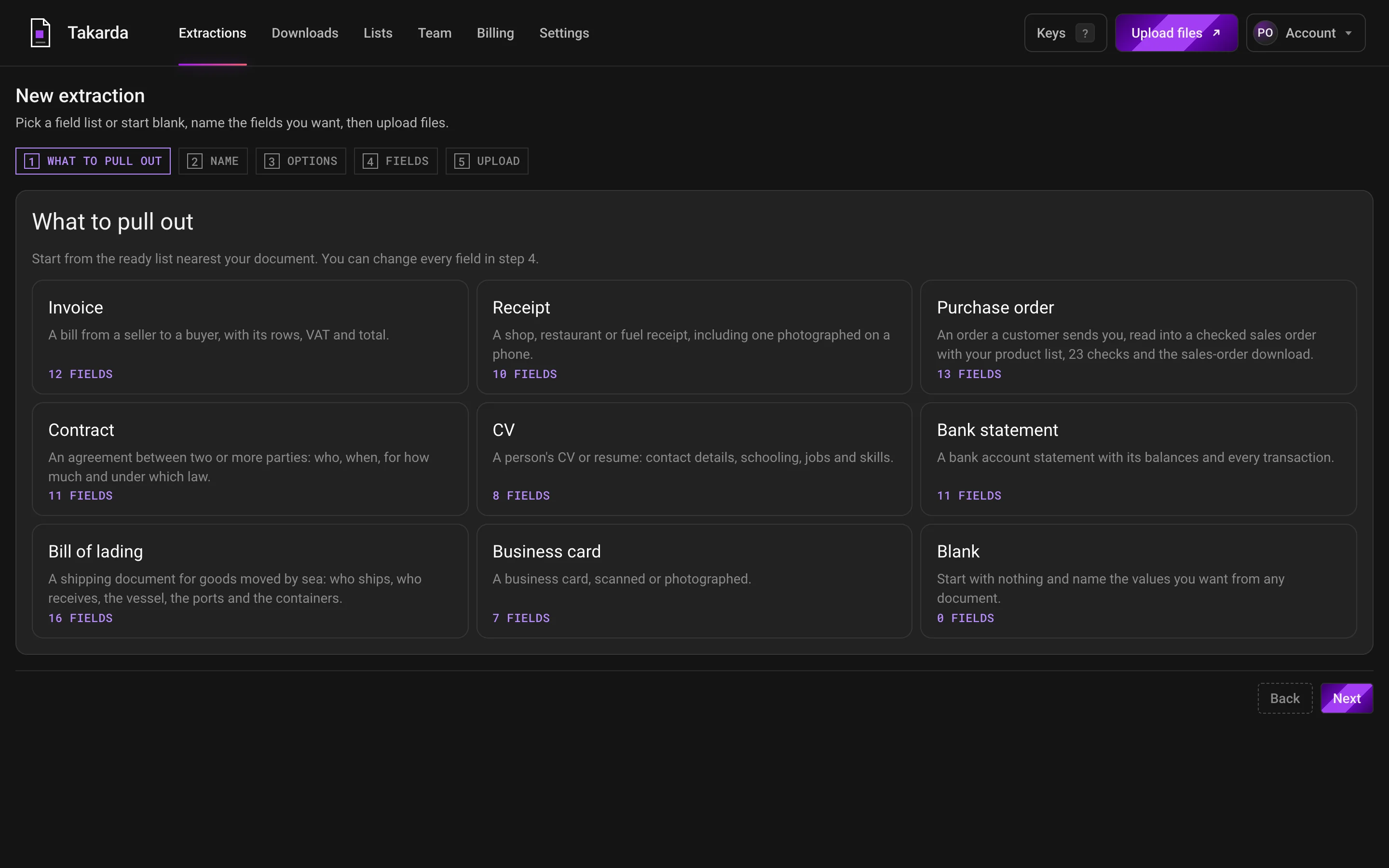
The first step of making a field list: ready lists to start from, such as invoice, receipt, purchase order, contract, CV, bank statement and bill of lading, and a blank one, each with its number of fields.
Step 1: start from the ready list nearest your document, or from a blank one.Open the screen full size
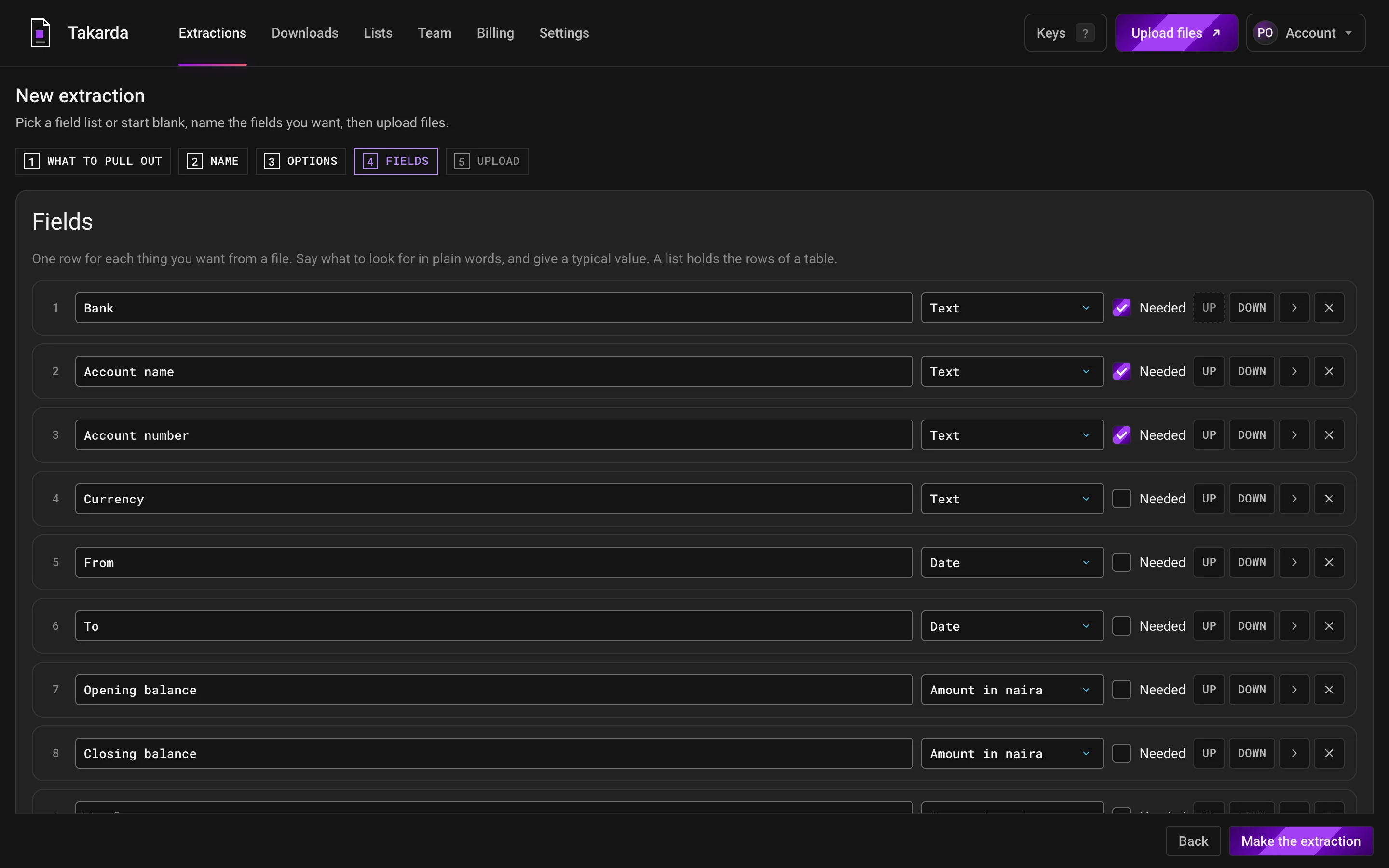
The fields step for the bank statement list: one row for each field, with its name, the kind of value (text, date or amount in naira) and a Needed tick.
Step 4: one row for each thing you want. Choose the kind of value and tick the fields a file must have.Open the screen full size

02 Many files

Many files at once.

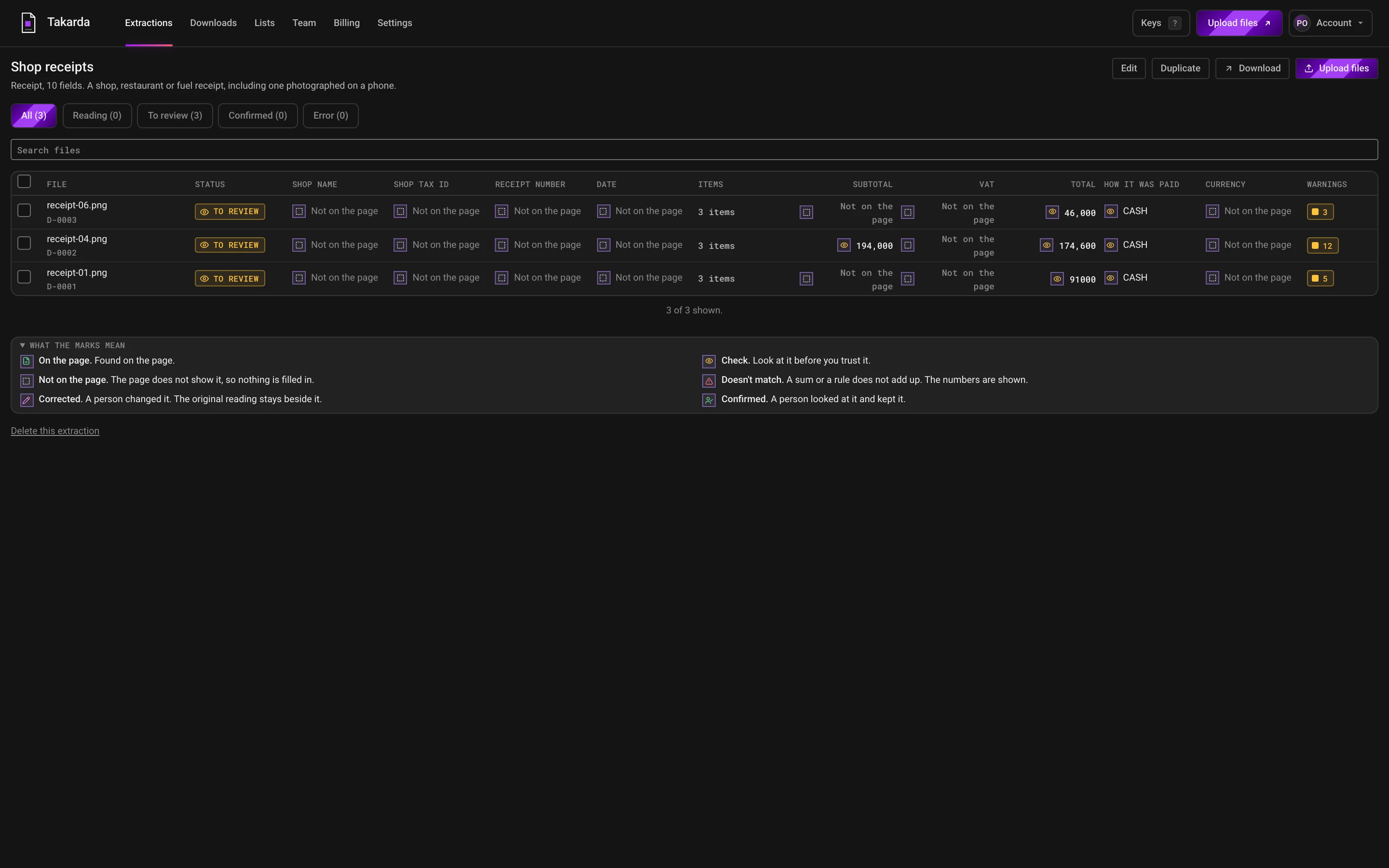
Upload up to 50 files together. Each one becomes a row with its own status: reading, to review, confirmed or error. Filter by status, search by name, and open any file from the table.

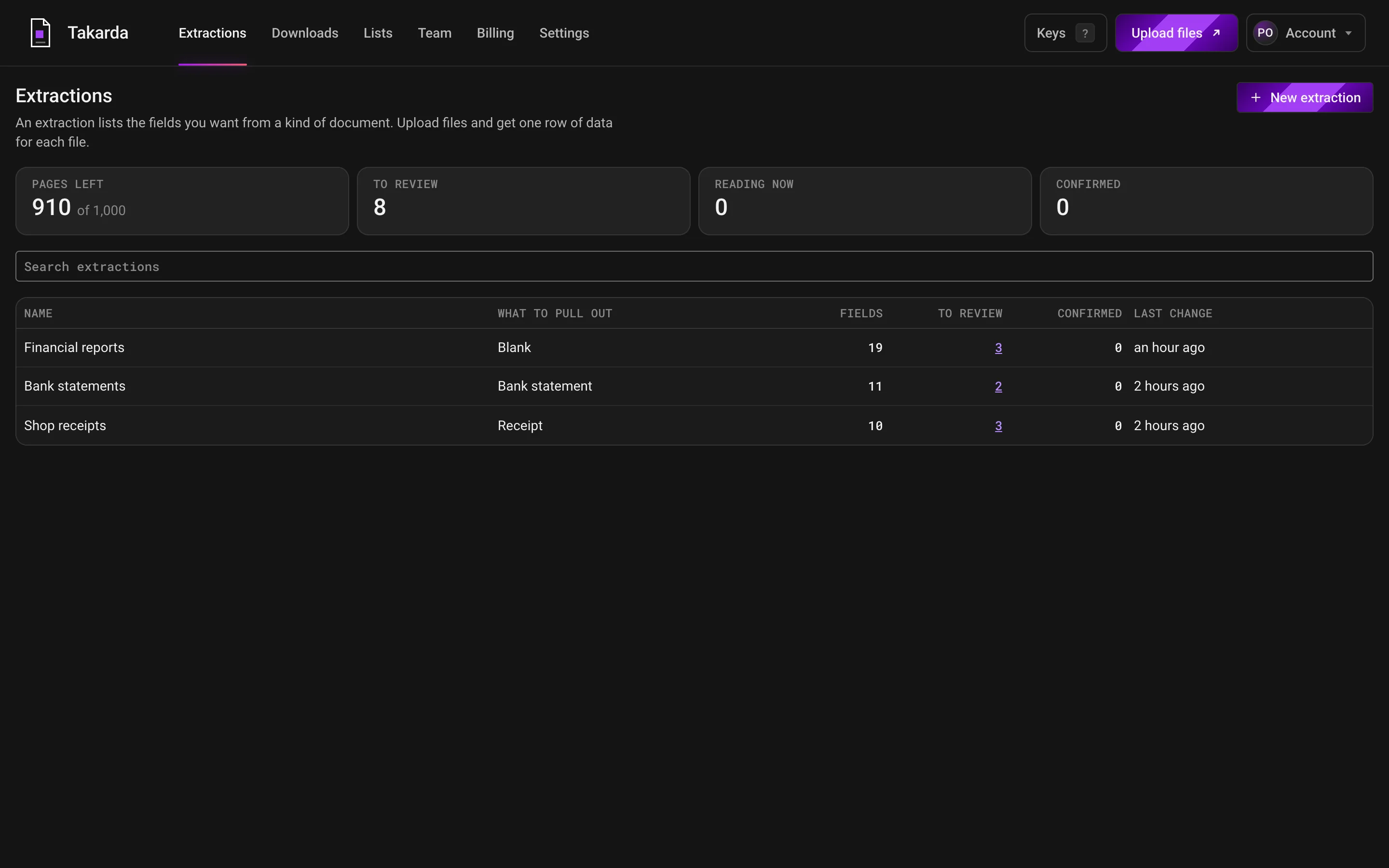
The workspace home: three field lists named Financial reports, Bank statements and Shop receipts, with the number of fields, files to review and files confirmed for each.
Your field lists, with how many files wait for a look and how many are confirmed.Open the screen full size
A table of three shop receipt files, one row each, with a status, a value and a mark for each field, and a count of warnings.
One row for each file: its status, each value with its mark, and how many warnings. A value the receipt does not show says Not on the page.Open the screen full size

03 Review

Review beside the page.

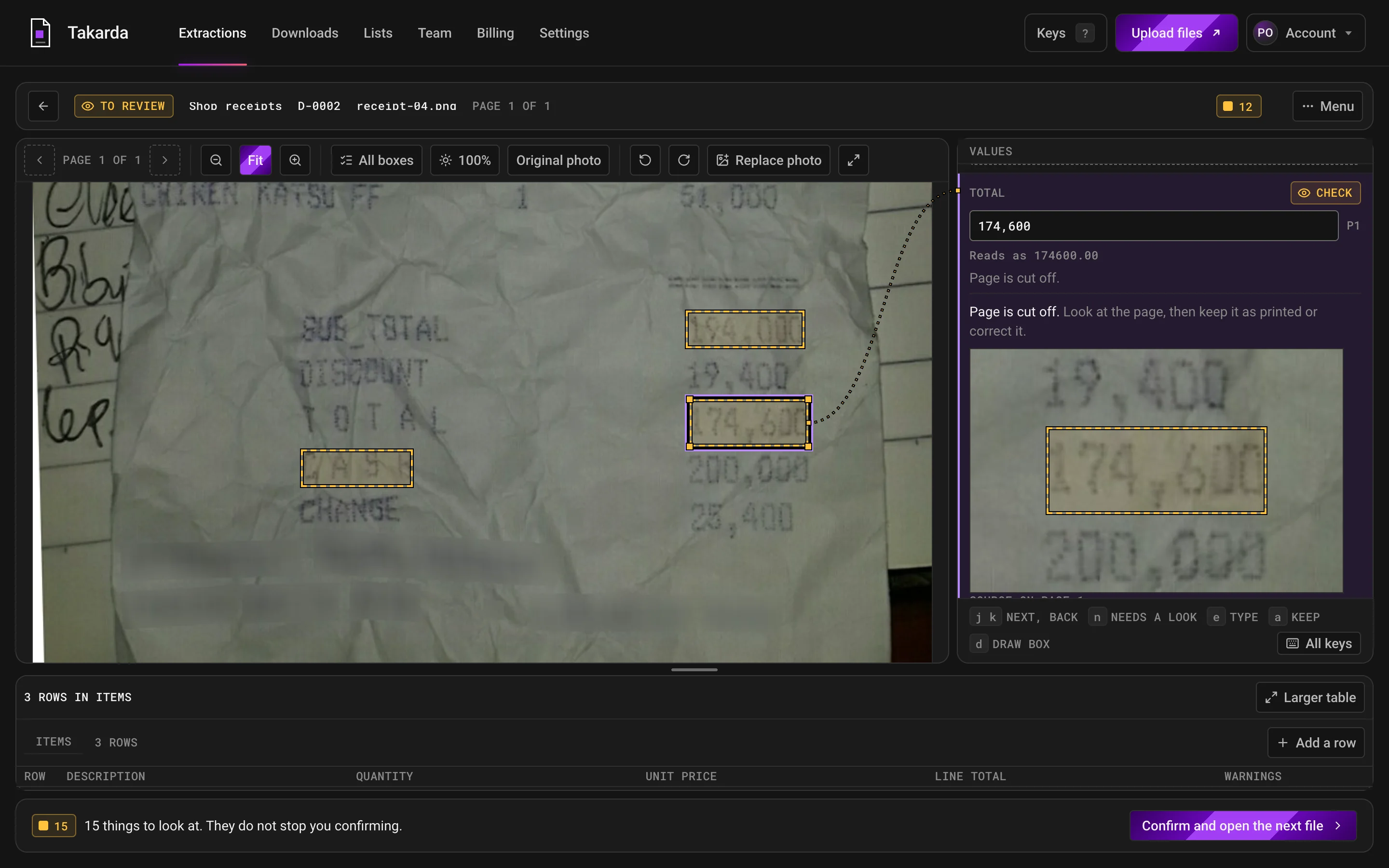
Open a file and see the document on one side and its values on the other. Click a value and its box lights up on the page. Correct what is wrong; the original reading stays beside your change. Confirm when you are happy.

The review screen: a receipt photo on the left with a box on the total, and on the right the total's value with a Check mark and the sentence Page is cut off.
The page on one side, the values on the other. Click a value and its box lights up on the page.Open the screen full size

04 Warnings

Warnings that say why.

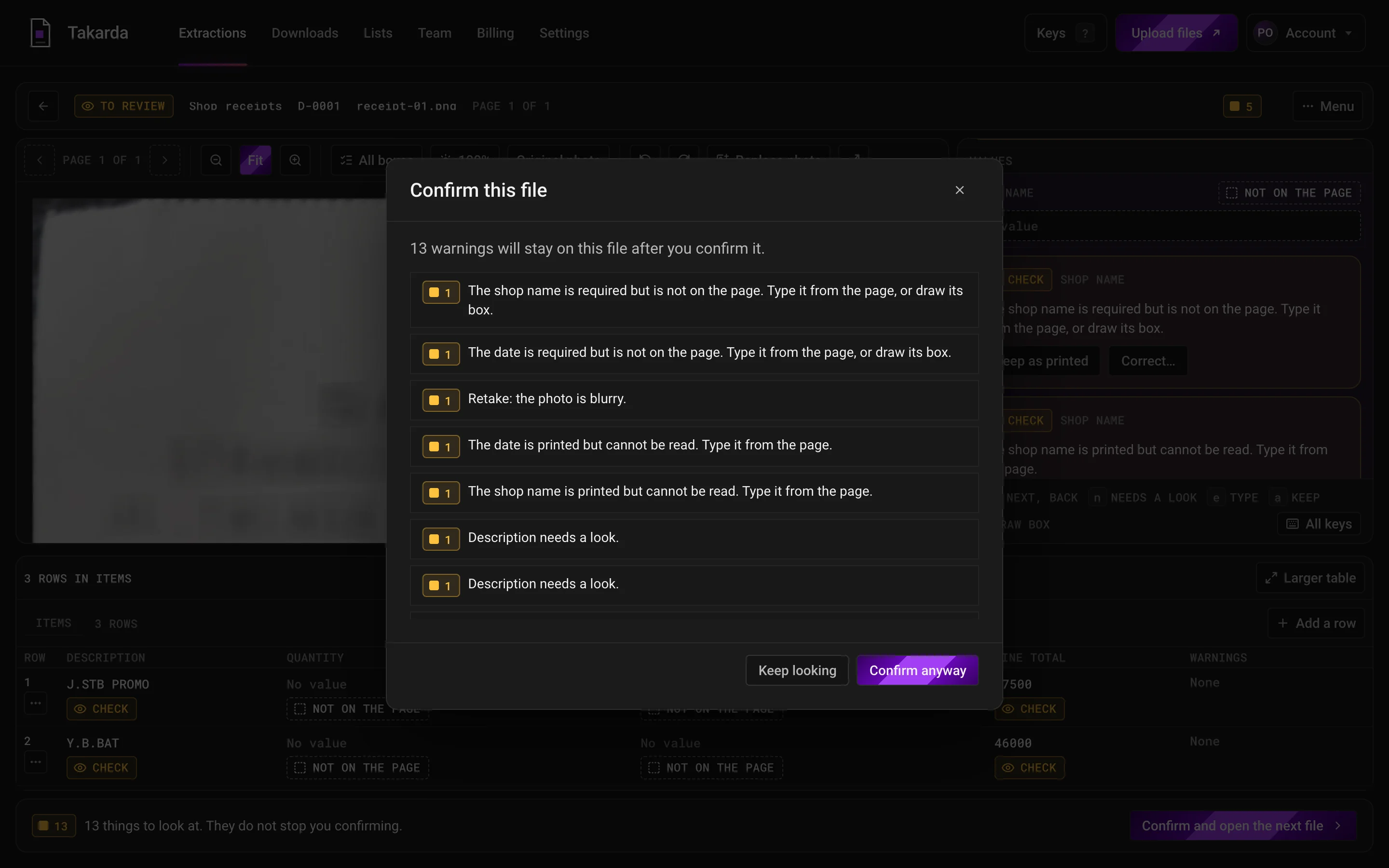
A missing value, a number that cannot be read, a total that does not add up, the same file twice: each is flagged with a plain sentence and the numbers. Nothing is changed for you.

The Confirm this file window, listing 13 warnings in plain sentences, such as that the photo is blurry and that the shop name is printed but cannot be read.
Each warning is one plain sentence. The warnings stay on the file after you confirm it.Open the screen full size

05 Downloads

Excel, CSV or JSON.

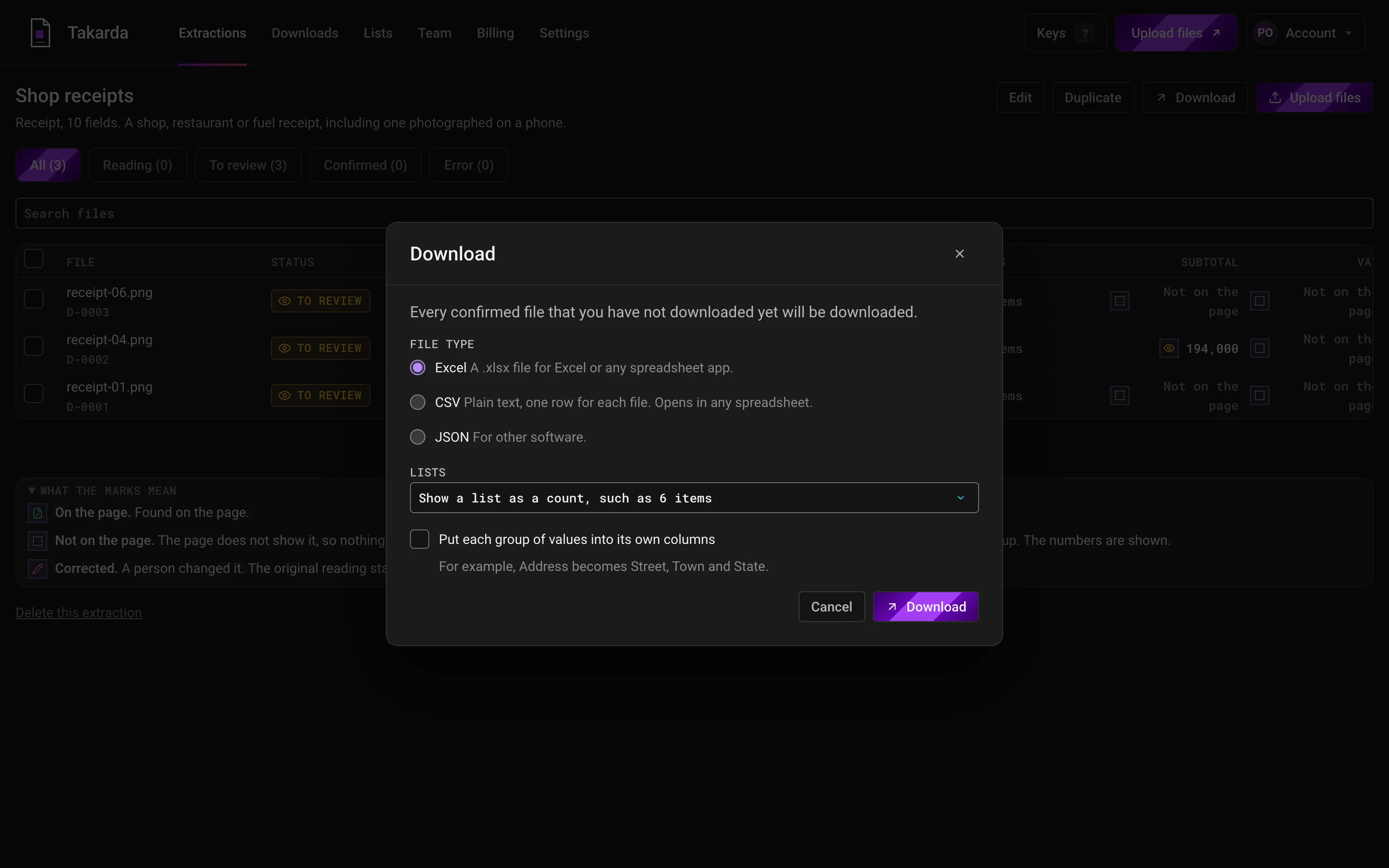
Download the files you confirmed, one row for each. Spread a list such as invoice lines so every line gets its own row. Nothing unconfirmed goes in.

The Download window: a choice of Excel, CSV or JSON, a choice for how lists are written, and a tick to put each group of values into its own columns.
Excel, CSV or JSON. Only files a person confirmed go in.Open the screen full size

Options

Switch on what your paper needs.

Each field list has a few options. They change how Takarda reads, and you can switch them on or off at any time.

Tables

List fields are read as tables, with a row for each line.

Handwriting

Handwritten values are read and marked Check, so a person looks at them.

Ticked boxes

Ticks and crosses in boxes are read as yes or no.

One row a page

A PDF of many one-page documents becomes one row for each page.

Some pages only

Set the first and last page to read, and skip the rest.

Language

English by default, or any language when your papers are mixed.

For your own software

Send files in. Take the rows out.

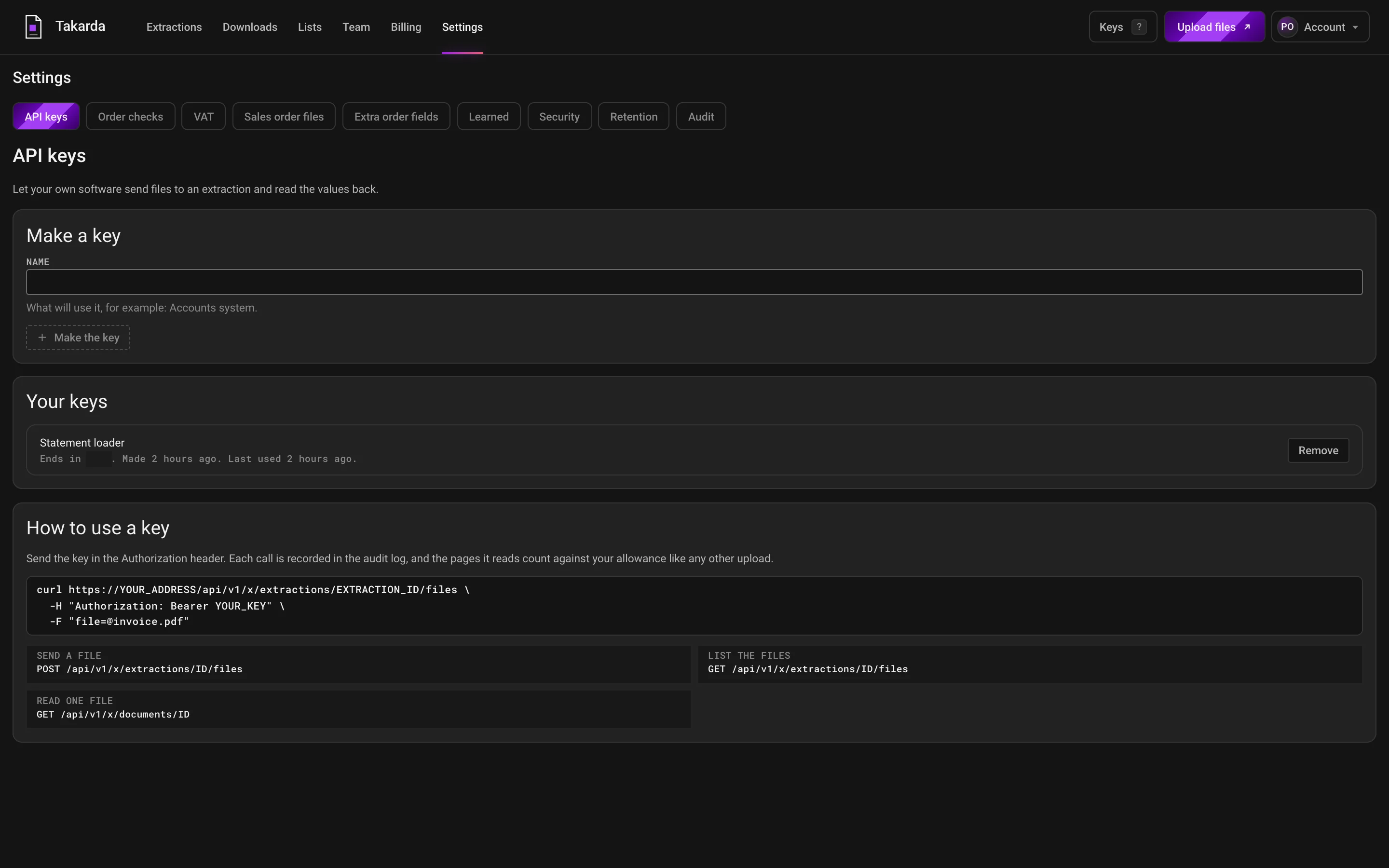
An admin can make up to five API keys. A key works only on your account. Every call is logged, rate limited and counted in pages like any upload.

The API keys page: a box to name and make a key, the keys already made with a Remove button, and the three calls that send a file in and read values out.
Name a key, make it, remove it. Each call is recorded, and the pages it reads count against your allowance.Open the screen full size
The three calls
Authorization: Bearer <your key>

POST /api/v1/x/extractions/{field_list}/files    send one file
GET  /api/v1/x/extractions/{field_list}/files    the rows and statuses
GET  /api/v1/x/documents/{file}                  the values, statuses, boxes

Documents

Ready for the paper you handle.

Why it helps

Less typing, more checking.

Less typing

The details come off the page and into columns. You check them instead of keying them.

Nothing slips by

A missing value or a sum that does not add up is flagged before it reaches your spreadsheet.

You stay in charge

Nothing is downloaded until a person has looked at the file and confirmed it.

Tested on real documents

What it did on real documents.

We read two real bank statements and a public company report with the version of Takarda we tested, and counted every result against an answer key. The counts, how we measured them and what went wrong are on each page below.

19 of 19

fields right on a 37-page public quarterly report, each with its box on the page, using a field list written for it.

1,358 of 1,365

boxes in the right place on the statements. Only 1,365 of 3,932 values had a box at all, and that is the weak spot we found.

These are figures of the version tested, counted against an answer key. What went wrong is listed beside them, not left out.

Questions

Questions about the product.

Can I change a ready field list?

Yes. Every ready field list is a starting point. Reword a field, remove one, add your own, or make a list field with columns. Changing a field list makes a new version, and files already read keep theirs.
Can I read many files at once?

Yes. Upload up to 50 files together. Each one becomes a row, with its own status: reading, to review, confirmed or error. Check them one by one, then download.

Can I connect Takarda to my own software?

Yes. An admin can make up to five API keys. A key uploads a file into a field list and fetches the rows, the statuses and the boxes. Every call is logged and counts pages like any upload.

Can several people work on the same files?

Yes, and members are free on every plan. A viewer can look, a reviewer can upload, correct and confirm, and an admin can make and edit field lists and keys.

What if a value is not on the page?

It reads Not on the page and stays empty. Takarda does not guess to fill a gap. A value that is found points to a box on the page. Some wrong readings can still get through, which is why you look at each file and confirm it before you download.

What can I download?

Excel, CSV or JSON, with one row for each confirmed file. A list such as invoice lines can be spread so every line gets its own row, or kept as one cell. A cell that starts with = or + cannot run as a formula. The purchase order field list also has a sales order download.

Read your first file. Keep the page beside it.